
Atmospheric Technician
| Engineering | |
|---|---|
| Atmospheric Technician | |

Atmospheric Technician
|
Roleplay Difficulty: Easy Gameplay Difficulty: Above Average Playtime Requirements: Engineering: 15h Access: Maintenance, Engineering, Atmospherics Supervisors: Chief Engineer Subordinates: None Responsibilities: Setting up distribution and waste gas systems, respond to atmospheric threats Guides: Guide to Atmospherics, Guide to TEG, Guide to Supermatter |
Starting out
As an atmospheric technician, your responsibilities move away from the physical damages you can see to the invisible (or highly visible) threats of the gaseous world. You are by this point expected to know basically both the engineering particle accelerator engines, how to respond to emergencies and restoring station integrity. Just like your fellow station engineers, you will begin the shift with a mostly equipped toolbelt, however, most of your more specialised equipment is kept in your lockers. You will gain further accesses in the role, and particularly, air alarms, the atmospherics room that stores, distributes and extracts the station's gases supply along with the TEG and the Supermatter on some stations. Your best friend will be the gas analyser, allowing you to quickly diagnose atmospheric issues and check up your gas production lines.
Distribution and Waste Gas Networks
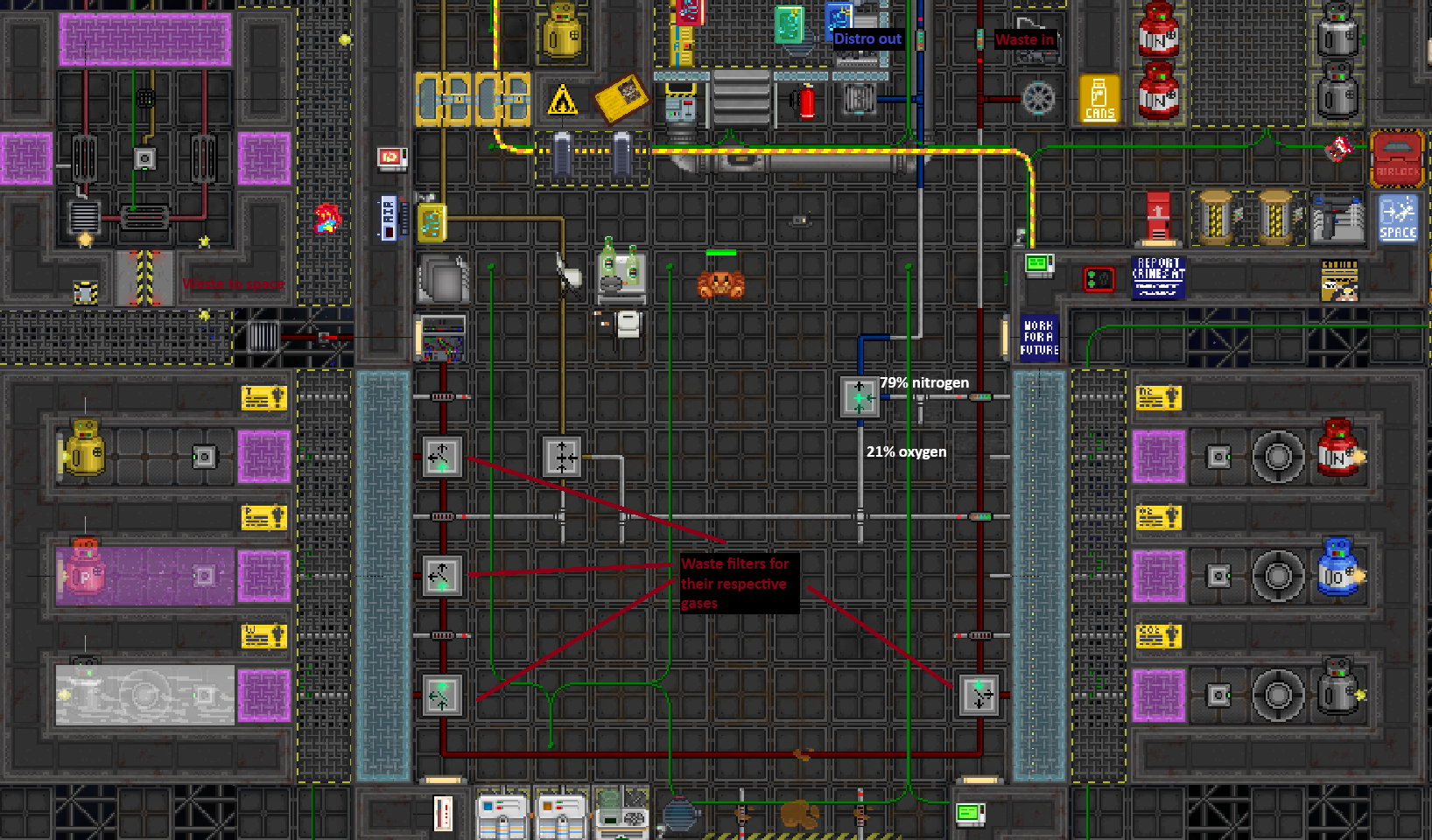
As an atmospheric technician, you must always set up distribution and waste networks up in a timely manner. To connect distribution, run oxygen and nitrogen from the storage gas pumps into a mixer and set to around 21% oxygen, 79% nitrogen as the standard air mix, although higher oxygen content mixes are common and acceptable. Then pipe the mixer into the BLUE gas pump pointed AWAY from the atmospherics room. To set up waste, pipe filters from the RED pump into their respective gas storages. This should be done with filters NOT inline filters as they do not split the pipenet, and as a result, allow gases you want filtered to be vented out to space. Finally, ensure that after the gas passes through all the filters, it is ejected directly into space. It is highly recommended to not filter out oxygen or nitrogen as any localised superheating or supercooling event will affect the whole gas supply, and the distribution of these thermally modified gases can lead to the whole station being superheated or supercooled. For this reason, it can also be recommended to not filter out any gases with miners as you will have an unlimited supply of them anyways. You can avoid their filtration by setting their pumps to filter 'None'.
Gas Analysers
The gas analyser is a tool that allows you to analyser the composition of gases on the tile you are standing on and on pipes that you use the analyser on. The analyser will provide a pop-up that displays (from top to bottom) the:
- Image and name of analysed device if applicable
- The volume in litres
- The pressure in kilopascals
- The temperature in Kelvins and Celsius
- The gas composition listed with
- Name
- Mole count
- Percentage of composition
- A coloured bar displaying the visual composition of the gas mixture
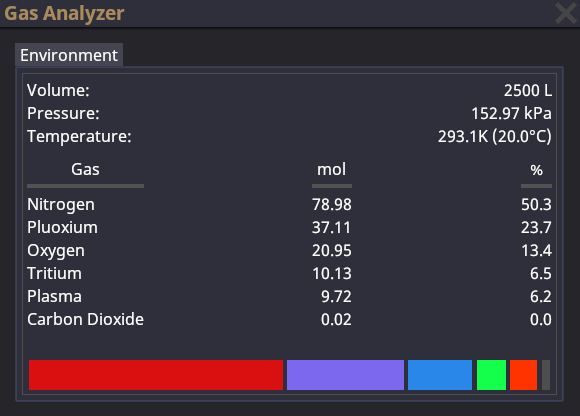 Your analyser is very important for rapid diagnosis. It can be used for the environment, canisters, pumps, pipes and more. Do note that it will only tell you what is currently inside of the pipe itself, not the entire pipenet. For example, if you have a 5 pipes together and 100 moles of oxygen inside, scanning one pipe will only show that there are 20 moles inside it as 100 / 5 = 20 moles.
Power
As an atmospheric technician, you now have access to two new engines, the TEG and the Supermatter. These engines are atmospheric based and it is your responsibility to maintain them once they are up.
Thermo-Electric Generator(TEG)
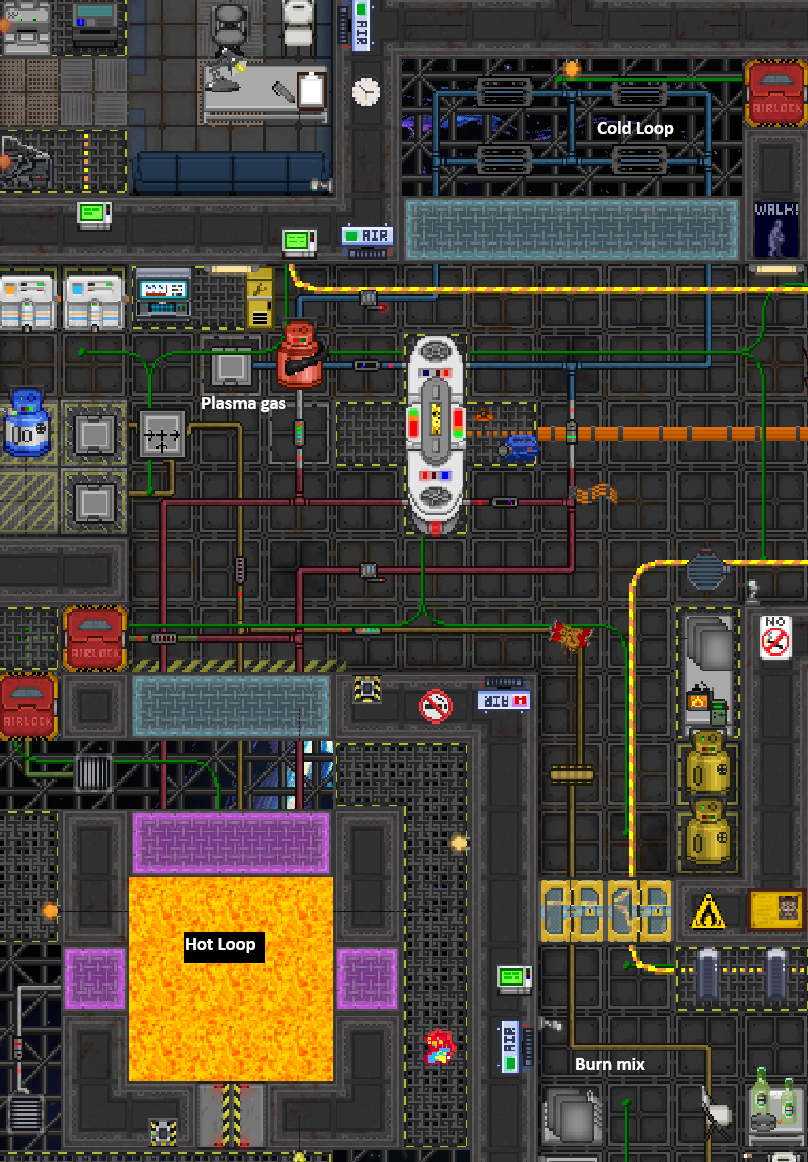
See more in the Guide to TEG The TEG is an engine that uses the energy transfer between a hot loop to a cold loop to generate power for the station. The TEG is a very safe and reliable station engine capable of powering the entire station alone. They require a hot loop that is almost always heated via a burn chamber and a cold loop that is cooled via space facing radiators.
The loops use a high heat capacity gas such as plasma in the loops, which flow into the circulators. The amount of power reduced is based on the the temperature difference between the loops and the heat capacity of the gas used within the loops. The higher both the above factors are, the more potential power will be generated.
Air Alarms
The humble air alarm is the device that controls all the scrubbers, vents and firelocks within its designated zone. All connected devices can be controlled from the air alarm alone and advanced atmosians can even use this for automating certain processes. The air alarm be default is set to trigger at certain thresholds, for example, it will be set to warn if the temperature rises above 314.5K or it will be set to danger if more than 0.5% of the air is plasma, indicating a leak. In the case of those air alarms that come with the station, they are set to automatically deploy firelocks to isolate areas with dangerous atmospheric conditions to preserve the rest of the station.
Devices can be linked to air alarms using a multitool.
Header
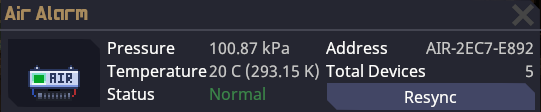
The UI of the air alarm header displays (from top down, from left to right):
- The average pressure reading of all connected devices in kilopascals
- The average temperature reading of all connected devices in Celsius and Kelvin
- The status of the most severe device. For example, if one device is reading 0.8% BZ, it will set the air alarm to warn because the warn threshold for that device as been reached, regardless of if the other devices still read 'Normal'
- The address of the air alarm
- The total devices connected to air alarm
Modes
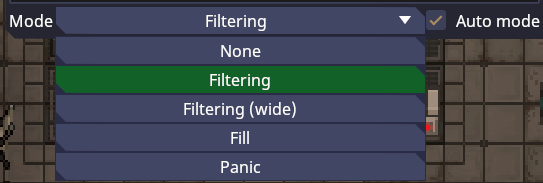
At the bottom of the UI, are the pre-set modes that control the behaviour of the scrubbers and vents attached to them. By default, auto mode is on and it will attempt to switch modes according to the situation. However, it is possible to disable it and manually switch the modes should manual intervention be needed.
The following modes are:
| Mode | Effect |
|---|---|
| None | Disables all scrubbers and vents connected to the air alarms |
| Filtering | Standard operation, scrubbers will scrub all gases set to filter out on the tile directly on the scrubber itself, vents will output gas up to the set limit (by default is 101.3kPa) |
| Filtering(wide) | Same as filtering but the scrubbers will instead scrub a 3x3 area around them instead |
| Fill | Disables scrubbers, sets vents to release gas regardless of whether they are pressure locked out or not and ignores the output limit |
| Panic | Disables vents, will set all scrubbers to aggressively siphon all gases even if the room is a vacuum |
Air Vents
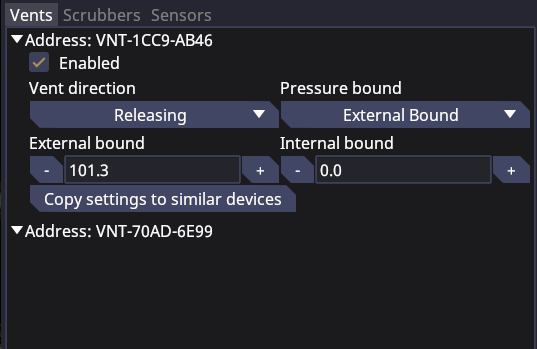
The vents tab provides the settings for each individual air vent. The available settings are:
| Function | Effect |
|---|---|
| Address | Tells you which individual air vent the setting is for |
| Enabled | Toggles the functionality of the air vent on or off |
| Vent direction | Releasing means that it actively releasing gases from inside its pipenet to the outside environment. Siphoning means that it is extracting gases from outside and forcing it into its pipenet. By default, this is set to 'Releasing' |
| Pressure bound | Whether the maximum pressure that the air vent will operate up to is set to external(the environment), internal(its own internal pipenet), both or none. By default, this is set to 'External Bound' |
| External Bound | The pressure in kilopascals of the external environment that the air vent will operate up to. By default, this is set to 101.3 |
| Internal Bound | The pressure in kilopascals of the internal pipenet that the air vent will operate up to. By default, this is set to 0 |
Scrubbers
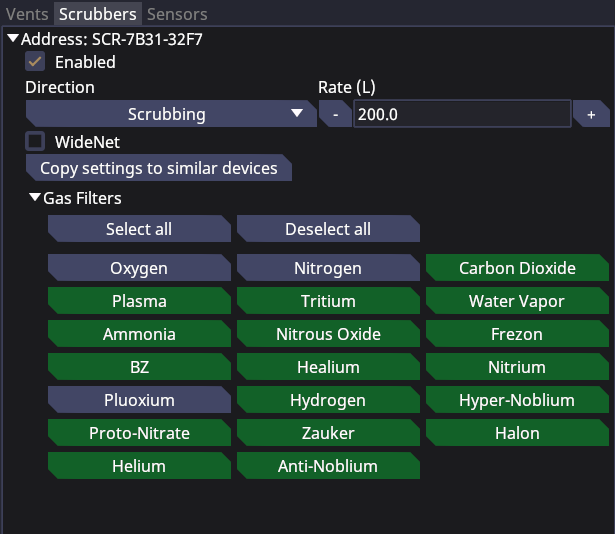
The scrubbers tab allows you to control the settings of individual scrubbers. The available settings are:
| Fuction | Effect |
|---|---|
| Address | Tells you which individual scrubber the setting is for |
| Enabled | Toggles the functionality of the scrubber on or off |
| Direction | When set to scrubbing, it will only scrub out the gases set on the gas filter. When set to siphoning, it will siphon all gases regardless of filter settings. By default, this is set to scrubbing |
| Rate | The rate in litres per second for how much of the tile above it that it will extract gas from. By default, this is set to 200L/s |
| Widenet | When enabled, it will extract gas from a 3x3 area centred on itself. By default, this is disabled |
| Gas Filters | This sets the gases that the scrubber will scrub from the air when enabled and scrubbing. By default, it scrubs all gases by oxygen, nitrogen and pluoxium |
Atmospheric Alerts Computer
The Atmospheric Alerts Computer is a console that you will have access to identify spacings, gas leaks, superheating and supercooling events and it is extremely important. In fact, it is so important, that it is literally part of your SOP to check it every 30 minutes. The things that the atmospheric alerts computer tells you on the alert tab are:
- Any fire alarms with an active atmospheric alert
- Any active fire alarms
- The pressure of the areas with an atmospheric alert
- The temperature of the areas with an atmospheric alert
- The gas composition of the areas with an atmospheric alert
- A useful colour coded map telling you exactly which areas are under an atmospheric alert
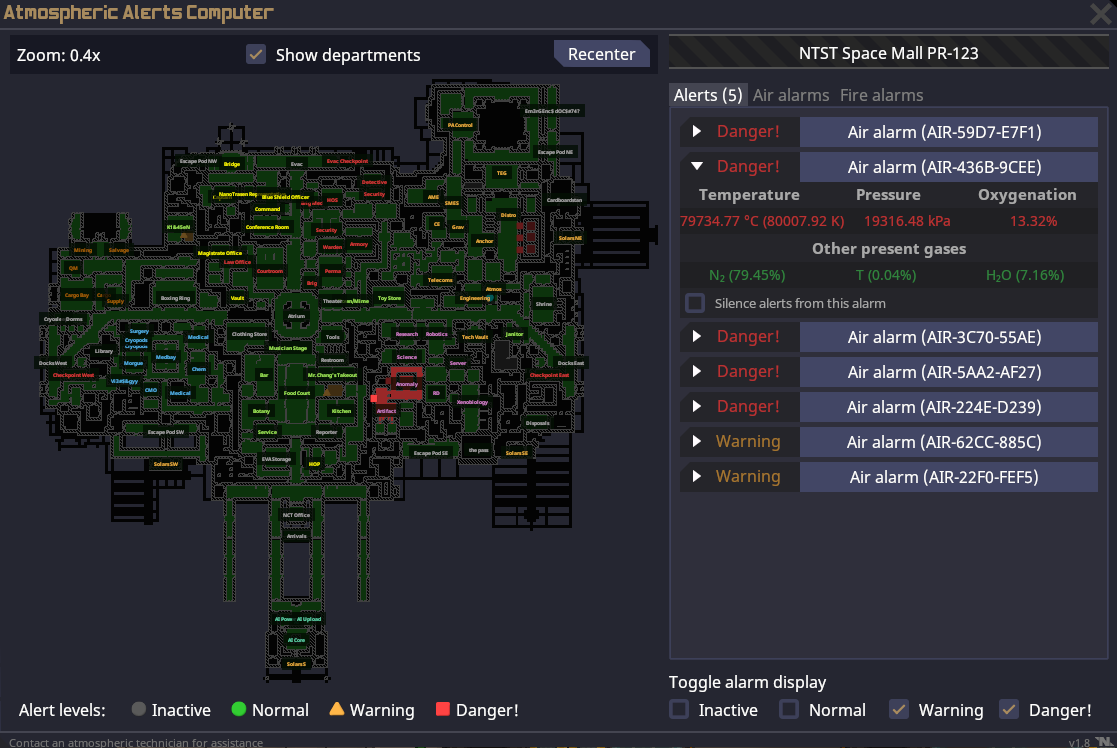
The 'Air alarms' and 'Fire alarms' tabs will show you all air and fire alarms respectively regardless of status.
Adapted from the Starlight wiki under CC BY-SA 4.0.